event-tech
Setting Up a Shared Photo Gallery That Grows During Your Event
A practical plan for inviting guests to add candid still photos throughout your event, with simple signage, thoughtful timing and clear expectations.
The onesnap team · 16 September 2026 · 9 min read
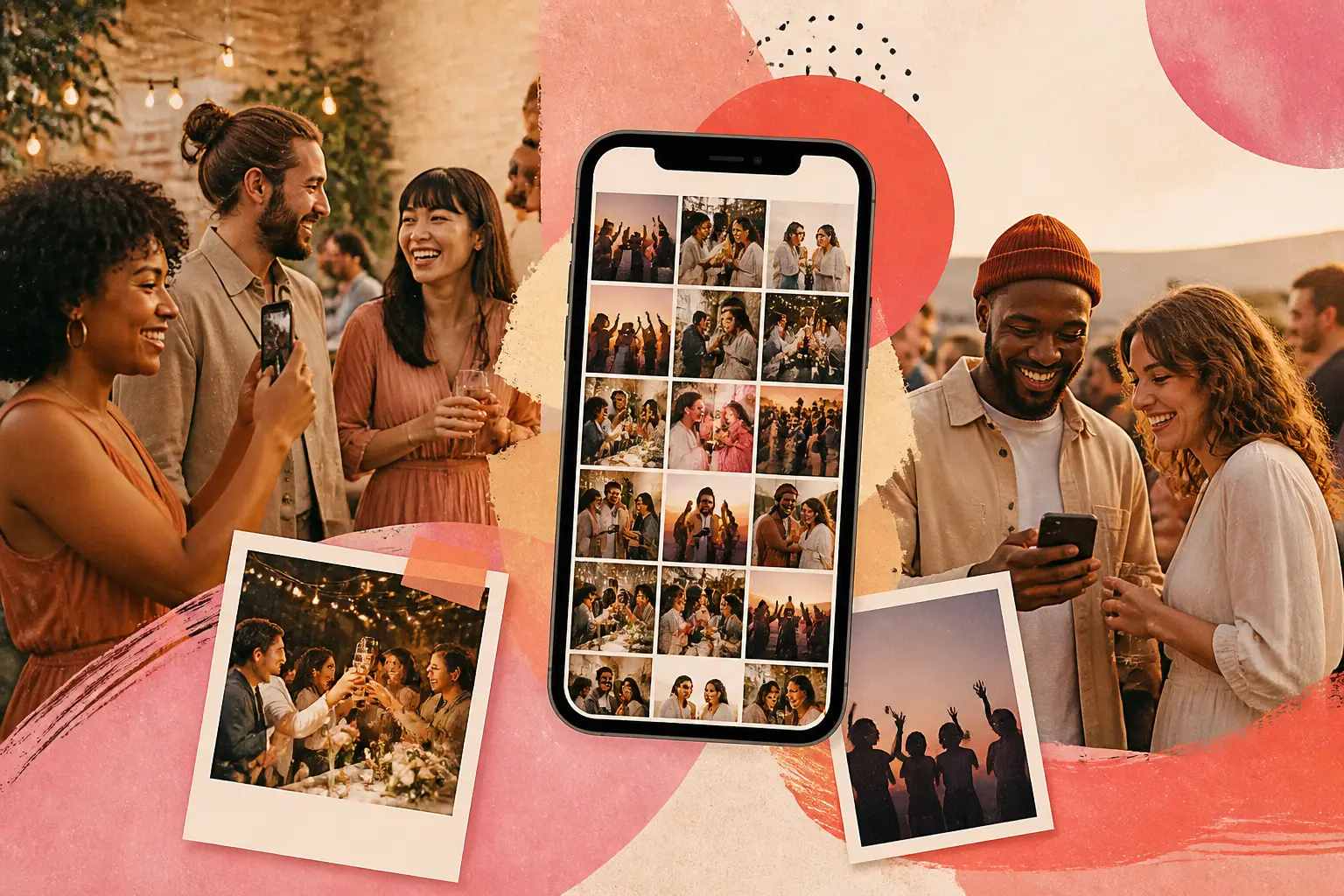
A shared photo gallery that grows during an event gives guests a simple way to contribute the candid still photos they take along the way. It can gather the small interactions a host may not see: friends arriving together, a thoughtful table detail, a reunion, a laugh between formal moments, or the energy around the room as people settle in.
The key is to make participation easy without making it feel compulsory. Guests need one clear route to join, a brief explanation of what they are being invited to do, and enough information to decide whether they are comfortable taking part.
With onesnap, guests join an event through a QR code or invite link. They do not need a onesnap account or an app download. They use a mobile-first, browser-based shared disposable camera to capture still photos, and the host chooses when the shared roll is revealed. Each captured guest photo is saved on the guest’s device before an upload is attempted, with queued photos syncing when connectivity permits.
This can suit hosts who want an event photo collection to build naturally during a wedding, celebration, fundraiser, conference, staff gathering or casual party, then reveal the shared roll at a time that suits the occasion.
Begin with a clear purpose
Before making a sign or sending an invite link, decide what role guest photos will play at your event.
Your aim might be to:
- gather candid guest perspectives in one place;
- give guests a light, optional activity during quieter parts of the event;
- create a shared record of a weekend or multi-part celebration;
- encourage people to notice details, people and places around them; or
- collect informal still photos alongside your planned professional photography.
A shared guest roll is an addition to professional photography, not a substitute for it. A professional photographer can focus on planned coverage, portraits and important moments, while guests contribute their own spontaneous perspectives.
It also helps to decide when you want people to see the collection. onesnap lets the host choose when the shared roll is revealed. You may prefer to hold the reveal until after speeches, the next morning, or once a whole weekend of celebrations has finished. Tell guests this upfront so the invitation matches the experience.
Create one simple way to join
Give guests one event-specific QR code and one invite link. Both should lead to the same event.
QR codes are helpful because they remove the need to type a web address. Guidance on QR codes for event photo collection recommends linking guests directly to the relevant photo destination and using repeat placements, including table numbers. Scanning a QR code requires a camera-equipped device and an internet connection, so a typed invite link remains a useful alternative. Read the QR-code guidance.
Keep the wording action-focused. Guests should understand the invitation at a glance.
For example:
Add your candid event photos
Scan the QR code or use the event invite link
No app or account needed
Or, if you are setting a shot limit:
Your shared event camera is ready
Scan to take and add your photos
You have 24 shots to use during the celebration
Hosts can set a per-guest shot limit of 12, 24 or 36 photos. Choose the limit with the event’s pace in mind. A smaller limit can make each contribution feel intentional, while a larger limit may suit a longer event or a celebration spread across several locations.
Avoid placing multiple unrelated QR codes together. If guests need to pause and work out which one is for photos, many will mean to come back later and forget.
Put the invitation where guests will notice it more than once
A single welcome sign is easy to miss during arrivals. Guests may be greeting family, finding their seats, checking a schedule or simply getting settled. Repeated, consistent signage gives them more than one chance to join.
Consider placing the same QR code and invite link at natural pause points:
- near the entrance or registration area;
- on table cards or table numbers;
- beside menus or at bar areas;
- in the printed programme or event schedule;
- near a guest book, gift table or seating chart;
- in a lounge, breakout space or quiet corner; and
- in a message sent shortly before the event begins.
Use the same headline everywhere. For instance, if your entry sign says “Add your candid event photos”, do not switch to “Guest camera” or “Photo roll” on the tables. Familiar wording makes the invitation easier to recognise.
Make sure the code has clear space around it and that the sign can be read where guests are likely to stand. Test it with an actual phone before printing a batch.

Keep the guest instructions brief
Guests should not need a lengthy explanation. The best instructions tell them what to do now, not every detail of the system behind it.
A useful sign can say:
- Scan the QR code or use the event invite link.
- Join the event camera.
- Take still photos as you go.
- Watch for the host’s shared-roll reveal.
Because onesnap is browser-based, guests do not need to download an app or create an account. That makes it easier to invite people in the moment, including guests who did not see your pre-event message.
It is still wise not to make QR scanning your only route. Research on digital access notes that not everyone has, wants or can use a smartphone at all times, and that a digital method should not be the only means of access. See the published discussion of digital-access barriers.
For your event, the alternative may be as simple as including the invite link beneath the QR code and asking a trusted host, family member or event staffer to help guests who would like assistance. The aim is not to pressure everyone to contribute. It is to ensure that willing contributors are not excluded by one particular way of joining.
Plan for patchy connectivity without making it a guest problem
Connectivity can vary between venues, outdoor locations and crowded rooms. Check the likely signal and available internet connection at the venue before the event, especially if guests will be joining from areas such as gardens, function rooms, basements or remote locations.
General event technical-planning guidance recommends testing the setup in advance and completing a final check close to the event. It also suggests considering a backup connection where practical. Read the event technical-planning guidance.
For a onesnap event, explain the practical point simply if needed: a captured guest photo is saved on the guest’s device before an upload is attempted. If connectivity is weak, queued photos sync when connectivity permits.
That means guests do not need to stop enjoying the event to troubleshoot every upload. Your job as host is to make joining clear, test your own event link, and avoid promising an immediate result where the venue connection may be unreliable.
Set expectations about photos and people
A shared roll works best when guests know it is a considerate, opt-in activity. Include a brief note on the sign, invite or welcome message about taking photos respectfully.
You might write:
Please take candid still photos kindly and check before photographing anyone who would prefer not to be included.
For events involving children, young people, cultural or religious settings, health-related gatherings, or other sensitive circumstances, take a more cautious approach. New Zealand privacy guidance notes that identifiable images are personal information and that an image may be sensitive when it reveals matters such as ethnicity, religion or health. Read the guidance on children, young people and photography.
Privacy expectations and legal obligations vary by location, event type and organiser. If you are hosting on behalf of an organisation or collecting images in a sensitive context, seek advice appropriate to your circumstances.
As a planning exercise, decide your answers before inviting guests: who is collecting photos, why are you collecting them, who is intended to view the gallery, and when will the shared roll be revealed? You should also set an organiser policy on whether anyone may download images, how long the organiser intends to keep images, and how someone can raise a concern or ask the organiser to consider removing an image. Australian privacy guidance explains that identifiable photos may be personal information in some circumstances and encourages organisations to tell people how images will be handled. It also describes express consent as good practice before publishing images online. Read the Australian guidance.
Keep a guest-photo invitation separate from any request to use images for future promotion. A gallery intended for attendees is not, by itself, permission to use images for another purpose. If you want permission for future promotional use, explain that purpose separately and ask separately.
For an organisation hosting an event in the United States, it is also sensible to check that the planned arrangement collects only the information needed, keeps it only as long as needed, and has clear expectations with relevant suppliers about data use, sharing, retention and deletion. Read the FTC’s guidance on protecting personal information.
Give the gallery a gentle introduction
A shared camera does not need constant announcements to work. Mention it once in a welcome, include it in the programme or pre-event message, and let the signs do the steady work.
If guests need a little inspiration, offer prompts connected to what is already happening:
- a photo of the people at your table;
- a detail that feels very “today”;
- the happiest reunion you spot;
- a favourite outfit, flower, place setting or view;
- a candid laugh between friends; or
- a moment the host might otherwise miss.
Avoid turning every moment into an assignment. The most useful guest photos tend to come from people who are already enjoying themselves and notice something worth remembering.
Run a final host check before guests arrive
Open your event from a guest’s point of view before the day begins. Scan the printed QR code, use the invite link, and make sure the signs are in the places you planned.
Then check the host side. onesnap provides an authenticated admin area where hosts can manage their events and gallery. Confirm that you are looking at the correct event, that your chosen shot limit is set, and that the reveal timing reflects your plan.
Finally, nominate one person who knows where the signs are and can answer the basic question: “How do I join?” That small bit of preparation helps the shared roll grow naturally, without turning photo collection into another task for the host.
A good event gallery is not about getting every guest to participate. It is about giving people a clear, low-pressure way to add their perspective. With simple access, repeated signage, realistic connectivity planning and respectful expectations, the collection can build throughout the event and become a more complete record of the day.
Sources and further reading
Written by the onesnap team with AI assistance. We never use customer photos, invent testimonials, or publish named competitor comparisons.
Read our editorial policyReady to see the night from every angle?
Create an event