wedding
Wedding QR Code Sign Checklist: Copy, Design and Placement
A practical checklist for creating a wedding QR code sign that tells guests exactly how to share their candid photos, with clear wording, a backup link and easy-to-scan design.
The onesnap team · 30 July 2026 · 8 min read
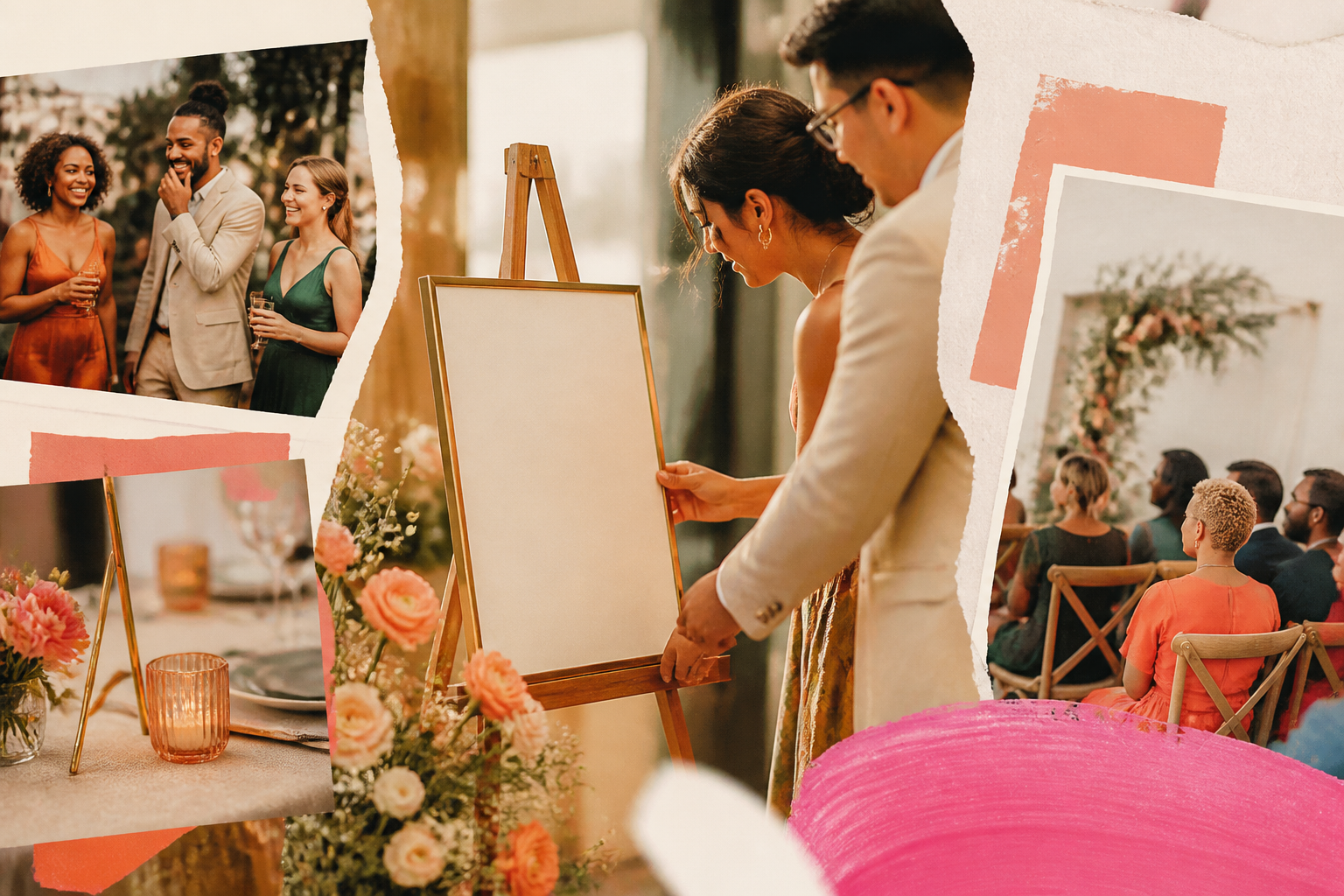
A wedding photo QR code sign has one job: make it easy for guests to understand what you are asking them to do, then let them do it without fuss.
The most beautiful sign in the room will not help much if guests cannot tell where the code leads, whether they should scan it now, or what happens next. A clear label and a short instruction matter more than a clever phrase.
For a onesnap wedding, the message should be especially simple: guests scan the event QR code or use the invite link, take still photos through their phone browser, and contribute to the shared roll. They do not need to download an app or create a onesnap account.
Below is a practical checklist, followed by ready-to-adapt wording for the sign itself.
The five essentials for your sign
1. A headline that says what the code is for
Do not leave a QR code to speak for itself. People are more likely to scan when the intended outcome is stated plainly. QR-code guidance recommends giving the code a specific call to action rather than displaying it without context. SUNY Cortland’s QR-code guidance makes the same point: explain what people will receive or do when they scan.
For a onesnap sign, choose a headline that matches the action:
- Help us capture the day
- Take photos for our shared wedding roll
- Add your candid photos
- Snap the moments we might miss
- Our wedding, through your eyes
The last option is more decorative, so pair it with a direct instruction immediately beneath it. “Scan to take photos for our shared roll” leaves no ambiguity.
Avoid vague labels such as “Scan me”, “QR code” or “Click here”. They do not tell a guest why scanning is worthwhile.
2. One short instruction
A guest should be able to understand the next step in a glance. Keep the instruction to one sentence, using everyday language.
For example:
- Open your phone camera, scan the code and take your photos.
- Scan the code to join our shared wedding camera.
- Scan, snap your favourite moments and add them to our roll.
- Use your phone camera to scan and start taking photos.
Wedding QR-code guidance commonly directs guests to scan with their phone camera and reach the relevant wedding photo destination. The Knot’s wedding QR-code guide also suggests using signs and printed materials to point guests towards that link.
With onesnap, there is no need to promise an app-based process. In fact, the clearest wording is browser-focused: guests can scan the code or open the invite link, with no app download or account required.
3. A clear request for the kind of photos you want
Guests are often happy to contribute, but a small prompt helps them notice the moments you value. Make it warm rather than demanding.
Try one of these lines:
- Please capture the laughs, hugs, dance-floor moves and little moments.
- Take the candid photos you would love us to see tomorrow.
- We would love your behind-the-scenes moments from today.
- Snap the people, details and celebrations that catch your eye.
Because onesnap captures still photos only, keep the wording specific to photos. This avoids setting an expectation the gallery is not designed to meet.
If you have selected a per-guest shot limit in onesnap, you may choose to mention it as a creative prompt, but it is usually not necessary on the main sign. The simpler the sign, the quicker it is to understand.
4. Your names and wedding date
Add your names and the date to ground the sign in the occasion. It is a small detail that makes the sign feel intentional, and it helps identify the wedding if the sign is moved, photographed or revisited later.
A simple format works well:
Jordan & Priya
14 March 2027
Or use your preferred styling:
The wedding of Jordan and Priya · 14 March 2027
Keep this information secondary to the call to action. Guests should see the reason to scan before they read the fine detail.
5. A fallback link for anyone who cannot scan
Always include a short, readable web address beneath the QR code. Label it clearly, rather than printing a bare URL.
Can’t scan? Visit: [short link]
A text alternative is useful for accessibility and for the occasional phone, camera setting or lighting condition that makes scanning difficult. SUNY Cortland recommends providing an alternative, and it is sensible wedding-day backup planning.
For onesnap, use the event invite link supplied for your event. Before printing, open that exact link on a phone and make sure it takes guests directly to the event.

Ready-to-use wedding QR code sign wording
Here is a complete version that works well for a reception sign:
Help us capture the day
Scan the code to join our shared wedding camera. Take photos of the candid moments, familiar faces and celebrations you spot.
No app or account needed.
Can’t scan? Visit: [short event link]
Jordan & Priya · 14 March 2027
For a smaller table sign, reduce it further:
Take a photo for the newlyweds
Scan to join our shared wedding camera.
Can’t scan? [short event link]
Jordan & Priya
For a more playful celebration:
See a moment worth keeping? Snap it.
Scan the code and add your candid wedding photos to our shared roll.
No app needed.
[short event link]
The wording can reflect your tone—formal, relaxed, colourful or understated—but the functional information should remain easy to find.
A note for unplugged ceremonies and social sharing
If you are asking guests to put phones away during the ceremony, keep that request separate from the reception photo-sharing invitation. An officiant announcement can reinforce ceremony instructions, while a visible sign gives guests a reminder. The Knot’s guidance on unplugged weddings notes the value of clear, visible requests around device use and posting.
For example, a ceremony sign might say:
We would love you to be fully present for our ceremony. Please keep phones away until the celebration afterwards.
Then introduce the onesnap QR code at cocktail hour or the reception, where you actively want candid guest photos.
If you would prefer guests not to post photos publicly before you have shared your own, add a polite line to the QR sign:
Please share your photos here first, and save public posts for later.
Only include rules you genuinely intend to communicate and enforce. Too much small print can distract from the main action.

Make the QR code easy to scan
A working QR code needs a calm, high-contrast design. Adobe’s QR-code design guidance recommends a dark code on a light, plain background. That means a black or very dark code on white, cream or another light solid colour is a dependable choice.
Keep these design rules in mind:
- Do not place the code over a photo, watercolour wash, floral illustration or gradient.
- Leave the blank border around the code uncluttered. This clear edge, often called the quiet zone, helps phone cameras recognise the code.
- Keep patterns, frames, logos and decorative flourishes away from the code itself.
- Use a high-quality print file. If your designer or printer supports it, an SVG file can scale cleanly for print; Adobe explains the practical print advantages of SVG QR-code files.
- For a small sign scanned at close range, QR-code guidance suggests a code at least 1 inch / 2.5 cm square. Make it larger when guests will scan from farther away. SUNY Cortland provides this sizing guidance.
Do not assume the digital proof is enough. Print the final design and test it in the actual conditions where it will appear. Scan it on more than one phone, in the likely lighting, at the intended angle and distance. Confirm that the link loads on mobile and that guests reach the event action straight away. This final-print testing is a key recommendation in Adobe’s QR-code best-practice guide.
Put the sign where guests can act on it
One sign near the entrance may not be enough. Guests arrive at different times, set down their phones, move through several spaces and may only feel inspired to take photos later in the celebration.
Place the code where people naturally pause or gather:
- On the welcome sign, so guests see it early
- At the bar or drinks station
- On reception tables or table numbers
- Near the guest book, card box or seating display
- At a photo-friendly corner of the reception
- In the programme or other printed wedding stationery
Wedding planning guidance specifically identifies signage, programmes and table numbers as useful locations for directing guests to a wedding photo link. See The Knot’s placement suggestions.
Use the same event QR code and fallback link across each piece, but tailor the amount of text to the available space. Your welcome sign can include the full explanation. A table card only needs the headline, code and backup link.
Final proofing checklist
Before sending your sign to print, check the following:
- The headline explains why guests should scan.
- The instruction says exactly what to do.
- The wording asks for photos, not unsupported types of content.
- Your names and date are correct.
- The QR code leads to the correct onesnap event.
- The fallback invite link is short, readable and correct.
- “No app or account needed” is included only if you are using onesnap or another destination that genuinely supports it.
- The code is dark, clear and set on a light plain background.
- Nothing crowds the blank border around the code.
- The printed sign has been tested on more than one phone.
A good wedding QR code sign is not about squeezing in every detail. It gives guests a simple invitation, a clear next step and a backup route if scanning does not work. Once those basics are right, you can let the styling reflect the atmosphere of your day.
Sources and further reading
Written by the onesnap team with AI assistance. We never use customer photos, invent testimonials, or publish named competitor comparisons.
Read our editorial policyReady to see the night from every angle?
Create an event